 Nadia Mohamed
Technical SEO
"Indexed, Though Blocked by robots.txt": What It Means and the 3 Ways to Fix It
“Indexed, though blocked by robots.txt” means Google has put a URL in its index even though your robots.txt file stops Googlebot from crawling it. To fix it, decide whether the URL belongs in Google, then either unblock it and add noindex, keep it blocked and remove the links pointing to it, or leave it alone.
This article explains why blocking a crawl does not block indexing, how to find the rule and the links responsible, and how to apply each fix without making things worse. It ends with the WordPress-specific causes.
Key takeaways
- robots.txt controls crawling, not indexing. Google’s own documentation says robots.txt “is not a mechanism for keeping a web page out of Google”. A blocked URL that other pages link to can still be indexed from those links alone.
- Fix 1, unblock and
noindex: the only permanent way to take a URL out of Google while it still exists. Google cannot read anoindexon a page it is not allowed to fetch. - Fix 2, keep blocked and remove links: right for URLs you never want crawled, such as parameter or internal search URLs. It works, but slowly.
- Fix 3, leave it: a status Google files as a warning, not an error, and often the correct end state for low-value URLs that rarely surface.
- On WordPress, core has not written
Disallow: /since version 5.3. If you see a site-wide block, it came from a physical file, a plugin or the host.
What “Indexed, though blocked by robots.txt” actually means
Start with Google’s own definition in the Page Indexing report documentation: “The page was indexed despite being blocked by your website’s robots.txt file. Google always respects robots.txt, but this doesn’t necessarily prevent indexing if someone else links to your page.”
The same entry explains the mechanism: “Google won’t request and crawl the page, but we can still index it, using the information from the page that links to your blocked page.” The URL is in the index, but the content is not. Google has never read the page.
That is why these results look odd. Google’s robots.txt introduction says a blocked page’s URL “can still appear in search results, but the search result won’t have a description”, and the Page Indexing documentation warns that any snippet “will probably be very limited”. Anchor text and the linking pages are all Google has to go on.
Google files the status under warnings, which “don’t prevent a page from being indexed”, not errors.
How it differs from “Blocked by robots.txt”
The Page Indexing report has two robots.txt statuses, and they describe opposite outcomes of the same rule.
| Status | What happened | Is the URL in Google? |
|---|---|---|
| Blocked by robots.txt | Google found the URL, obeyed the Disallow and did not index it | No |
| Indexed, though blocked by robots.txt | Google obeyed the Disallow, but indexed the URL anyway from links | Yes, usually without a snippet |
Even the first status is not a guarantee. Google’s note on “URL blocked by robots.txt” says blocking “does not guarantee that the page won’t be indexed through some other means”. A URL can move from the first row to the second as soon as enough links point at it.
For the rest of the Page Indexing statuses, including the server and redirect errors that sit alongside these two, see crawl errors in Google Search Console.
Why blocking crawling does not block indexing
Crawling and indexing are separate steps, and robots.txt only governs the first: which URLs a crawler may fetch.
Google is explicit that it will list a URL it has never fetched. Its robots.txt introduction states that “a page that’s disallowed in robots.txt can still be indexed if linked to from other sites”, and that “the URL address and, potentially, other publicly available information such as anchor text in links to the page can still appear in Google Search results.”
The robots.txt specification says the same about the disallow rule itself: Google “can’t index the content of pages which are disallowed for crawling, but it may still index the URL and show it in search results without a snippet.”
The trap is that the tool people reach for to remove a page is the one that stops removal working. Google’s noindex documentation is direct: “If the page is blocked by a robots.txt file or the crawler can’t access the page, the crawler will never see the noindex rule, and the page can still appear in search results.” A Disallow added on top of a noindex hides the noindex from Google.
I cover the wider crawl-versus-index model, including AI crawler tokens, in robots.txt for developers. This article stays on the one status.
Before you fix anything: confirm the rule and the links
Two facts decide the fix: which rule blocks the URL, and what links to it.
1. Export the affected URLs. Open the status in the Page Indexing report and export the examples. Google caps the table: the report documentation notes that the example list “is limited to 1,000 items”, so on a large site treat it as a sample and group by pattern.
2. Group them by pattern. Look for shared paths or parameters: /?s=, ?ref=, /cart/, ?sort=. Most real cases are one pattern producing hundreds of URLs.
3. Find the rule. Google’s robots.txt report help page says that to “test whether a specific URL is blocked by a robots.txt file”, use the URL Inspection tool. Developers can also build Google’s open source robots.txt library, which the same page says “is also used in Google Search”, and test rules locally.
Remember how Google resolves conflicts. It uses the most specific rule by path length, and the least restrictive rule when rules conflict. An Allow you thought would win may be shorter than the Disallow it is fighting.
4. Find the links. Crawl the site with your own crawler and filter internal links to the blocked pattern. Sitewide navigation, footer links and templated buttons are the usual sources. For external links, check your backlink tool; spam links to internal search URLs are common. The method is the same as in an internal linking audit, just filtered to one URL pattern.
5. Answer one question per pattern. Should this URL appear in Google?
- Yes: the block is a mistake. Remove or narrow the
Disallow, then use Validate fix in the report. This is Google’s own second next step for the status: “update your robots.txt file to unblock your page”. - No: pick one of the three fixes below.
Fix 1: Unblock the URL and add noindex
Use this when the URL must leave Google’s index and it still returns content. It is the fix Google recommends in the status entry: “To avoid being indexed, remove the robots.txt block and use ‘noindex’.”
The order matters. Add the noindex first, then remove the Disallow, so there is never a window in which Google can crawl a page that is still indexable.
<!-- In the <head> of every affected page -->
<meta name="robots" content="noindex">
For PDFs and other non-HTML files, send the rule as a response header instead. Google’s noindex documentation supports an X-Robots-Tag header with a value of noindex or none.
HTTP/1.1 200 OK
X-Robots-Tag: noindex
Then remove the rule. If the pattern is /?s=, the change looks like this:
# Before
User-agent: *
Disallow: /?s=

# After: the Disallow is gone, and noindex does the work
User-agent: *
Disallow:
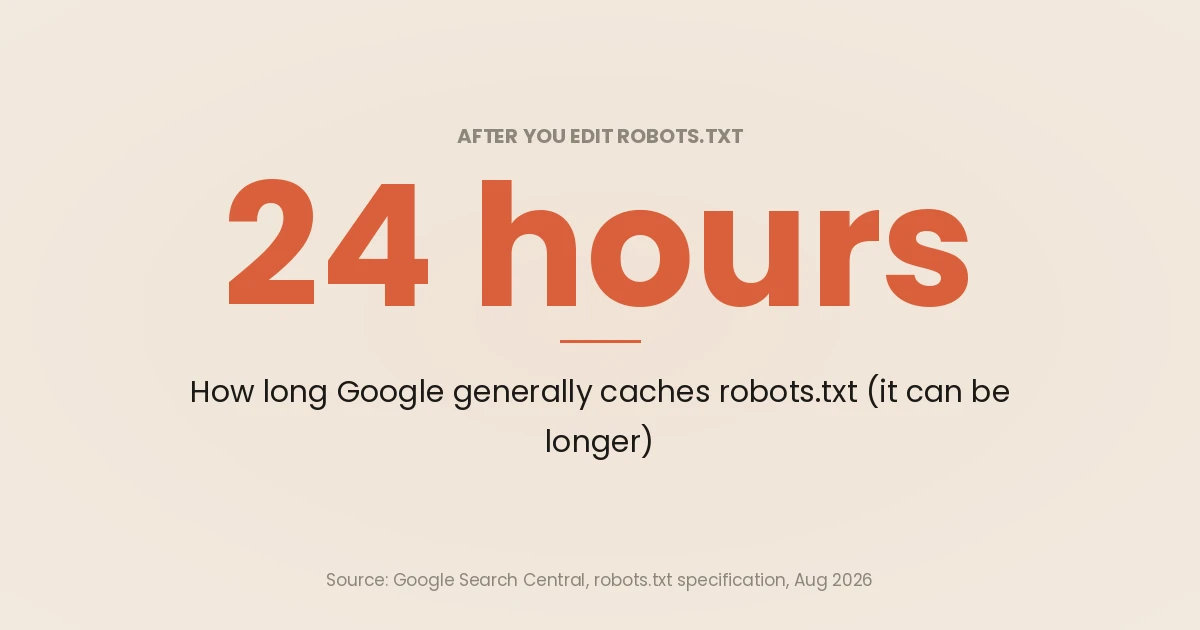
Now wait for Google to recrawl. Google says it generally caches robots.txt for up to 24 hours, and can hold it longer if it cannot refresh the file. The robots.txt report lets you request a recrawl of the file when you “changed your robots.txt rules to unblock some important URLs”, though Google notes this “doesn’t guarantee an immediate recrawl of unblocked URLs.”
Recrawling the URLs themselves can be much slower. Google’s noindex page warns that “depending on the importance of the page on the internet, it may take months for Googlebot to revisit a page”. Use URL Inspection to request a recrawl of the most visible URLs, and let the rest happen naturally.
If you need a URL gone today, the Removals tool hides it from results for “about six months”. It is a stopgap, not a fix: Google says it does not prevent crawling, and the URL can return when the block expires unless you have removed it permanently with noindex, a 404 or 410, or password protection.
Should you re-add the Disallow afterwards? Only for URLs nothing links to. If links keep pointing at the URL, re-blocking hides the noindex again and the URL can drift back into this status. For the choice between noindex and a canonical on duplicate pages, see canonical vs noindex.
Fix 2: Keep the block and remove the links
Use this when you never want Google to crawl the URLs at all: internal search results, cart and checkout steps, tracking parameters, endlessly combinable filters. The block is doing its job for crawling. The links are what put the URLs in the index.
Google’s own explanation points at the lever. The status happens “if someone else links to your page”, and Google then indexes “using the information from the page that links to your blocked page.” Take away the links and Google has nothing left to index from.
What removing the links means in practice:
- Internal links: stop templates from generating crawlable
<a href>links to the blocked pattern. A sitewide “Book a call” button that appends?ref=to every URL is a classic source. - Forms instead of links: internal search should be reached through a form submission, not through links to result pages in your own navigation or “popular searches” widgets.
- External links: you cannot remove spam links to
/?s=URLs, so Fix 1 is often better for internal search.
Expect this to be slow. Adam Gent documented a case on Indexing Insight where a sitewide ?ref= parameter produced 500 URLs in this status. After the internal links were given nofollow, the count started falling within two weeks, but it took 10 months to reach 6. That is one site, not a benchmark, but the direction is the useful part: removing links works, and Google does not rush to revisit URLs it has no reason to prioritise.
Also check that no blocked URL is listed in your XML sitemap.
Fix 3: Leave it
This is the fix nobody writes about, and on many sites it is the right one. Google’s own help page says that “URLs blocked by robots.txt are probably intentionally blocked” and advises you to “use your judgment when deciding whether to address a given issue.”
Leave it when all of these are true:
- The URLs are blocked on purpose and you want them uncrawled.
- They are low-value (search results, parameter variants, utility pages) and nothing sensitive.
- They do not show up for queries that matter to you. Check the Performance report filtered to the URL pattern.
- The count is stable rather than climbing.
A small, stable number of these URLs costs very little. Chasing it to zero can take months of engineering time for no ranking change.
Do not leave it when the count is climbing (usually a new template generating links) or when the URLs expose anything private. robots.txt is not a security control. Google’s robots.txt introduction recommends password protection or noindex for anything that must stay out of results. Staging sites belong behind authentication, which is also one of the launch checks in a site migration.
Which fix to use
| Your situation | Fix | Why |
|---|---|---|
| The URL should rank | Remove the Disallow, then validate | The block was a mistake |
| The URL must leave Google and has outside links | Fix 1: unblock and noindex | Only a crawlable noindex removes it permanently |
| The URL must never be crawled, and you control the links | Fix 2: keep blocked, remove links | Solves the cause without opening the crawl |
| Low-value URLs, stable count, no visibility | Fix 3: leave it | A warning, not an error |
| Private or staging content | Authentication, then the Removals tool if urgent | robots.txt is a request, not a lock |
Once you have applied a fix, open the status in the Page Indexing report and click Validate fix. Google says validation “typically takes up to about two weeks, but in some cases can take much longer”. For Fix 3, there is nothing to validate.
Indexed, though blocked by robots.txt on WordPress
WordPress sites hit this status for a few predictable reasons, and some of the advice still circulating is out of date.
The default WordPress robots.txt blocks /wp-admin/
If there is no physical robots.txt file in the site root, WordPress serves a virtual one. Its do_robots() source outputs a Disallow for the admin path and an Allow for admin-ajax.php. On a standard install that produces:
User-agent: *
Disallow: /wp-admin/
Allow: /wp-admin/admin-ajax.php
If /wp-admin/ URLs appear in the report, admin links have leaked into public pages. Fix 3 is usually fine.
”Discourage search engines” no longer writes Disallow: /
Many guides still say the Settings → Reading → Search engine visibility checkbox makes WordPress generate Disallow: /. That stopped in WordPress 5.3. The core development note for 5.3 says the Disallow: / line “has been removed for non-public websites”, and that such sites instead output <meta name='robots' content='noindex,nofollow' />. The do_robots() changelog records the same change.
The reasoning in that note is this whole article in one line: disallowing crawling “can have the effect of allowing a site to be indexed”. So if a WordPress site today has Disallow: / and this status on every URL, core did not write it. Look for a physical robots.txt file left over from staging, a plugin rule, or a host-level setting.
Your SEO plugin may own the file
Yoast SEO and Rank Math both let you edit robots.txt from the dashboard, and both interact with a physical file in different ways.
- Yoast SEO: the editor is under Yoast SEO → Tools → File editor. Yoast’s help page says WordPress only generates the virtual file “if the site root does not contain a physical file”, and that the File editor menu will not appear if file editing is disabled on the install.
- Rank Math: the editor is under Rank Math SEO → General Settings → Edit robots.txt, with Advanced Mode switched on. Rank Math’s knowledge base says you must delete any physical robots.txt from the site root to use it.
Before you edit anything, open /robots.txt in a browser and compare it with what your plugin shows. If they differ, a physical file or a server rule is winning, and edits in the plugin will not change what Google sees.
Internal search URLs are the usual culprit
Rank Math’s own robots.txt examples include a rule to block internal search results:
User-agent: *
Disallow: /?s=
That is exactly the kind of rule that produces this status. Search result URLs are easy to link to, and spam sites link to them in bulk. Once they are blocked, Google cannot see any noindex on them, so every linked search URL is a candidate for “Indexed, though blocked”.
For search URLs I prefer Fix 1: remove the Disallow and send noindex on search results. WordPress 5.7 added the wp_robots filter for exactly this, so a few lines in a small plugin or the theme’s functions.php will do it:
<?php
// Add noindex, follow to internal search result pages.
add_filter( 'wp_robots', function ( array $robots ): array {
	if ( is_search() ) {
		$robots['noindex'] = true;
		$robots['follow']  = true;
	}
	return $robots;
} );
Check your SEO plugin first, as it may already set noindex on search pages. Then remove the /?s= Disallow from whichever file or plugin owns robots.txt, and confirm in URL Inspection that the live test is allowed to crawl and sees the noindex.
Where this fits in a technical audit
On its own this status is rarely urgent, but as a pattern it shows which templates link to URLs you meant to hide. I check it in the crawl-and-index stage of the 12-phase SEO and GEO audit, next to its neighbours Crawled, currently not indexed and Discovered, currently not indexed. It is also one line in the technical SEO audit checklist. If you would rather have the robots.txt, noindex and linking rules reviewed together and fixed at the template level, that is part of my technical SEO and GEO work.
Frequently asked questions
What does “Indexed, though blocked by robots.txt” mean?
It means Google has indexed a URL that your robots.txt file stops it from crawling. Google obeys the block and never fetches the page, but it can still index the URL using information from pages that link to it. The result usually shows the URL with little or no description.
Is “Indexed, though blocked by robots.txt” bad for SEO?
Not usually. Google lists it as a warning rather than an error, and its help page says URLs blocked by robots.txt are probably intentionally blocked. It is a problem when the URL should rank (the block is a mistake), when it exposes something private, or when the count is climbing because a template keeps generating links.
How do I remove a page that is indexed but blocked by robots.txt?
Add a noindex meta tag or X-Robots-Tag header, then remove the Disallow rule so Googlebot can crawl the page and read it. Google’s documentation is clear that a noindex on a blocked page is never seen. If you need the URL out of results immediately, use the Removals tool as a temporary measure while the noindex is processed.
Why is Google indexing pages I blocked in robots.txt?
Because other pages link to them. robots.txt only controls crawling, and Google says a disallowed URL can still be indexed if it is linked from other places on the web, using the URL and anchor text of those links. Removing the links, or letting Google crawl the page and see a noindex, are the two ways to stop it.
How do I fix “Indexed, though blocked by robots.txt” on WordPress?
First open /robots.txt and find out what is generating it: the WordPress virtual file, Yoast SEO, Rank Math, or a physical file in the site root. Since WordPress 5.3, the “Discourage search engines” setting outputs a noindex meta tag rather than Disallow: /, so a site-wide block comes from somewhere else. For internal search URLs, remove the /?s= rule and add noindex through your SEO plugin or the wp_robots filter.